Skip to content
FLORA

FLORA Weekly

No. 052,

Inpaint / Outpaint / Crop

Edit Where You Generate

Edit Where You Generate

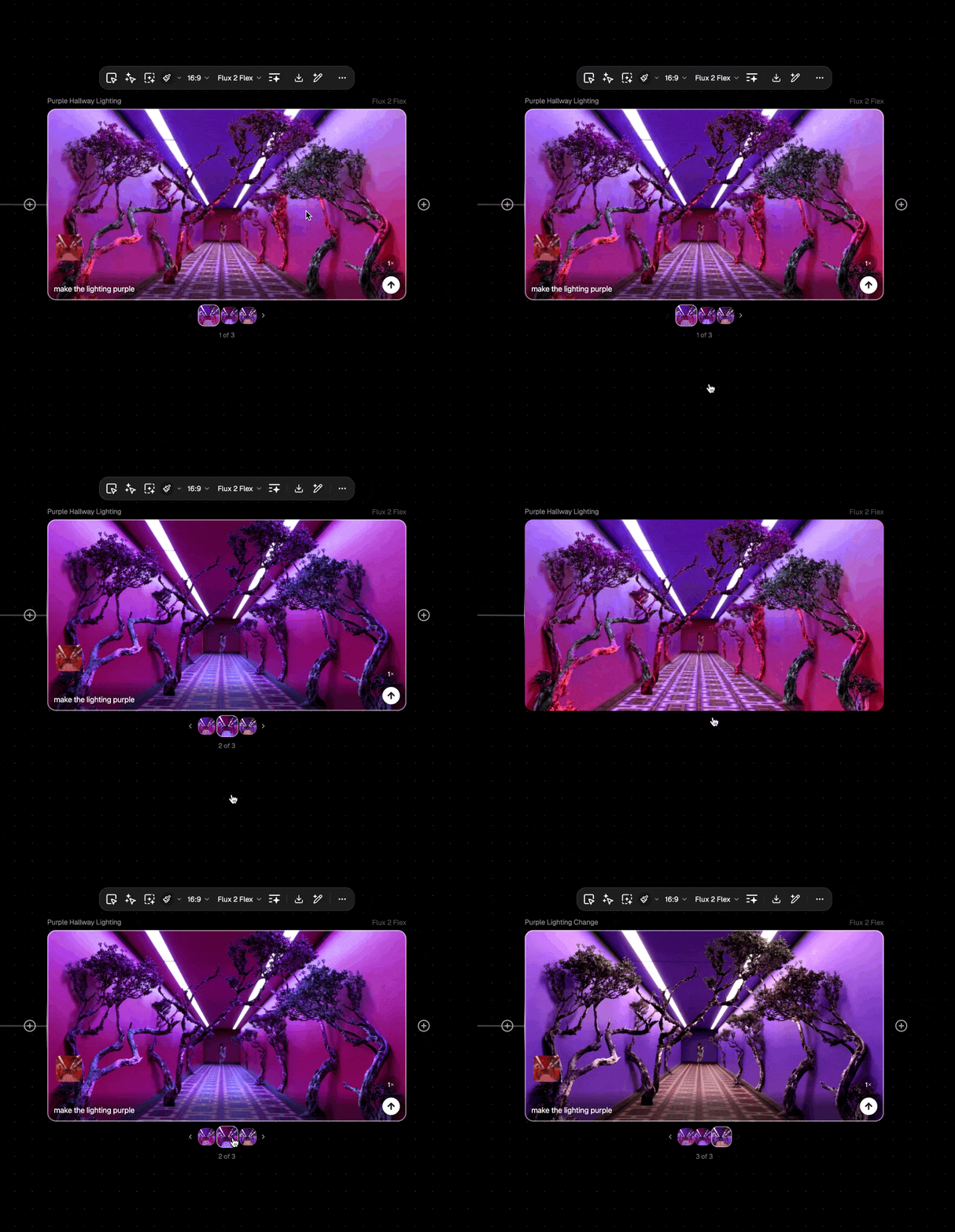
This release makes FLORA a complete image creation environment—generate, then perfect without ever leaving the canvas. Split compositions into layers, paint in or out to refine and extend, and crop to focus. Plus, the editor has more indicators to keep you in flow: keyboard shortcuts surface naturally through tooltips, and essential asset context is always visible.


📦 New

  1. Inpainting

    Replace or remove elements directly on the canvas.

    MoreLess

    Select any region and regenerate just that area. Swap out objects, fix artifacts, or erase distractions without starting over.

  2. Outpainting

    Extend your images beyond the original frame.

    MoreLess

    Expand the canvas in any direction and let AI fill in the new space. Great for adjusting aspect ratios or giving compositions more room to breathe.

  3. Cropping

    Narrow in on what matters.

    MoreLess

    Focus your image to the exact frame you need, right where you generated it.

  4. Split into Layers

    Turn one generation into editable pieces using Qwen’s layered edit model.

    MoreLess

    Separate foreground, background, and objects into individual outputs so you can iterate on parts of your composition without regenerating everything. Perfect for refining hero elements while preserving what already works.

To learn more about inpainting and outpainting, visit FLORA Docs.

🤖 New Models

  1. Gemini 3 Flash

    Google’s latest speed-optimized model.

    MoreLess

    Another option in the speed/quality tradeoff, ideal for rapid iteration when you want faster feedback loops without changing the rest of your workflow.

🧠 Improved

  1. Keyboard shortcuts in tooltips

    Hover over any toolbar item to discover its shortcut.

    MoreLess

    Power users move faster, and new users learn speed paths naturally while they work.

  2. Info panel visible by default

    Resolution, cost, model, and other context now shows without hunting.

    MoreLess

    Learn more about the underlying media assets you’re working with, at a glance.

  3. Folder labels on dashboard projects

    Quickly see which folder each project belongs to
FLORA Weekly

Your generation history gets a major upgrade with a new fullscreen modal featuring project-scoped and all-history views in a beautiful masonry layout. Plus shared projects become more collaborative than ever, and we've added Flux 2 Klein for fast, high-quality generation.

📦 New

  1. Fullscreen History Modal

    Browse your entire generation history in an expansive, distraction-free view.

    MoreLess

    Launch from the History popover's expand button to access a masonry grid layout with tabs to toggle between current project and all-time history. Perfect for finding that generation from weeks ago without endless scrolling.

  2. Flux 2 Klein

    Black Forest Labs' efficient new model optimized for speed without sacrificing quality.

    MoreLess

    Get high-quality results faster with this streamlined Flux variant, ideal for rapid iteration and exploration workflows.

  3. Duplicate Shared Projects

    External collaborators can now duplicate shared projects from the context menu.

    MoreLess

    Team members and clients can take shared work and create their own variations without needing full ownership permissions.

🧠 Improved

  1. Shared Projects Sorting

    "Shared with me" now sorts by last modified, so your most relevant collaborations surface first

  2. Double-click for fullscreen

    Double-click any image or video node to open fullscreen preview (also available via F shortcut)

  3. Default Variation Behavior

    Variations now save "In block history" by default, keeping your canvas cleaner while preserving all outputs

  4. Enhancor v4 Enhancement Modes

    Strength parameter updated to four intuitive modes: Subtle, Realistic, Pimple, and Freckle (defaults to Realistic)

🛠 Fixes

  • Veo 3.1 Fast "Auto" aspect ratio now resolves correctly, so image-to-video generations work as expected
  • Block input thumbnails wrap horizontally again - text selection and clicking work properly without overlapping elements

FLORA Weekly

Navigate our growing model library with ease and revisit your creative journey in a beautiful new full-screen History view. This update brings powerful organization tools to model selection plus a refined way to browse and manage all your generated assets.

📦 New

  1. Model Search

    Instantly find any model by typing in the model menu.

    MoreLess

    Skip the scrolling and jump straight to the model you need, especially useful as our library continues to expand with new releases.

  2. Pin Models

    Keep your go-to models at the top of the menu for quick access.

    MoreLess

    Personalize your workflow by pinning the models you use most, reducing clicks and keeping your creative momentum flowing.

  3. Auto Mode

    Let FLORA recommend the best model for each modality.

    MoreLess

    Turn off manual model selection and get intelligent recommendations based on your content type—perfect for users who want great results without the decision fatigue.

  4. Full-screen Generation History

    A completely redesigned view for browsing your generated assets.

    MoreLess

    Access your creative timeline from the History tab in the left sidebar. Review, compare, and revisit previous generations in an immersive full-screen experience.

🧠 Improved

  1. Provider Sorting

    Models now grouped by provider for easier browsing when multiple models are available from the same source

  2. Double-click Full-screen

    Quickly expand any node to full-screen view with a double-click for detailed inspection

⚙️ Settings

  1. Prompt Improver Toggle

    Control whether the background prompt optimizer is applied to your generations.

    MoreLess

    The improver is on by default to enhance prompts sent to models, but you can now disable it in Settings for complete control over your exact prompts.